
Run and manage bots
Start a bot from a tested strategy, read its numbers, pause or stop it.
A bot runs one strategy on one symbol, on your own OKX or Binance account, with real money. It trades tokenized US stocks and ETFs: a long position is bought on spot, and a short (where the strategy allows it) is opened on the share's perpetual in your futures account. A9 places the orders through your trade-only key; the assets never leave your exchange.
Start a bot
There are two ways in.
- Ready-made: once your key is connected and the trading account holds about 500 USDT, the "Get started" panel on the Bots page offers bots sized to your account and plan: "SOXL grid", "SOXL martingale" and "NVDA Bollinger reversion". Each card shows what it "Commits up to". Press "Start" on one; a sheet asks "Start this bot with real money?" and shows its settings. Press "Start the bot", or "Customize the settings →" to change them first.
- From a strategy: open Strategies, pick one from Discover or the Catalog, and run a backtest. Under "Run this as a bot", set "Per entry (USDT)" and press "Run bot". The bot uses exactly the settings you tested.
"Commits up to" shows the most the bot can put to work, for example every rung of a grid or martingale ladder. "More options — start price, take-profit, stop-loss" lets the bot wait for a price before it starts, and sell at a take-profit or stop-loss price.
Limits that apply at launch
A launch is refused, with the reason shown, when:
- your plan's bot count is reached (paused bots count too): Free 1, Core 5, Premium 20, Generation 50;
- the bot would take your total live capital over the plan's quota: Free 1,000, Core 20,000, Premium 100,000, Generation 800,000 USDT. A ladder counts in full, every rung;
- the amount per entry is below the exchange's minimum order, or above the platform's ceiling (for a grid, martingale or DCA, the whole ladder counts);
- on the same key and account, another bot already shorts that symbol, or another bot that rests orders (a grid or a ladder) already runs on it;
- the account is in hedge position mode instead of one-way, or a perpetual position in that symbol is already open for a bot that shorts;
- unpaid platform fees are over your limit (see below).
If the account already holds that stock on spot, or has open orders on it that no A9 bot placed, A9 asks before it starts; you can choose "Understood — launch anyway".
The Bots page
- All time: what your bots have realized in total, a link to "Profit analysis →" and, when something is owed, the platform fee owed to A9, with "Pay →" once it reaches 10 USDT.
- Running now: Banked P&L, Floating, Total, the most capital deployed and the share of bots in profit.
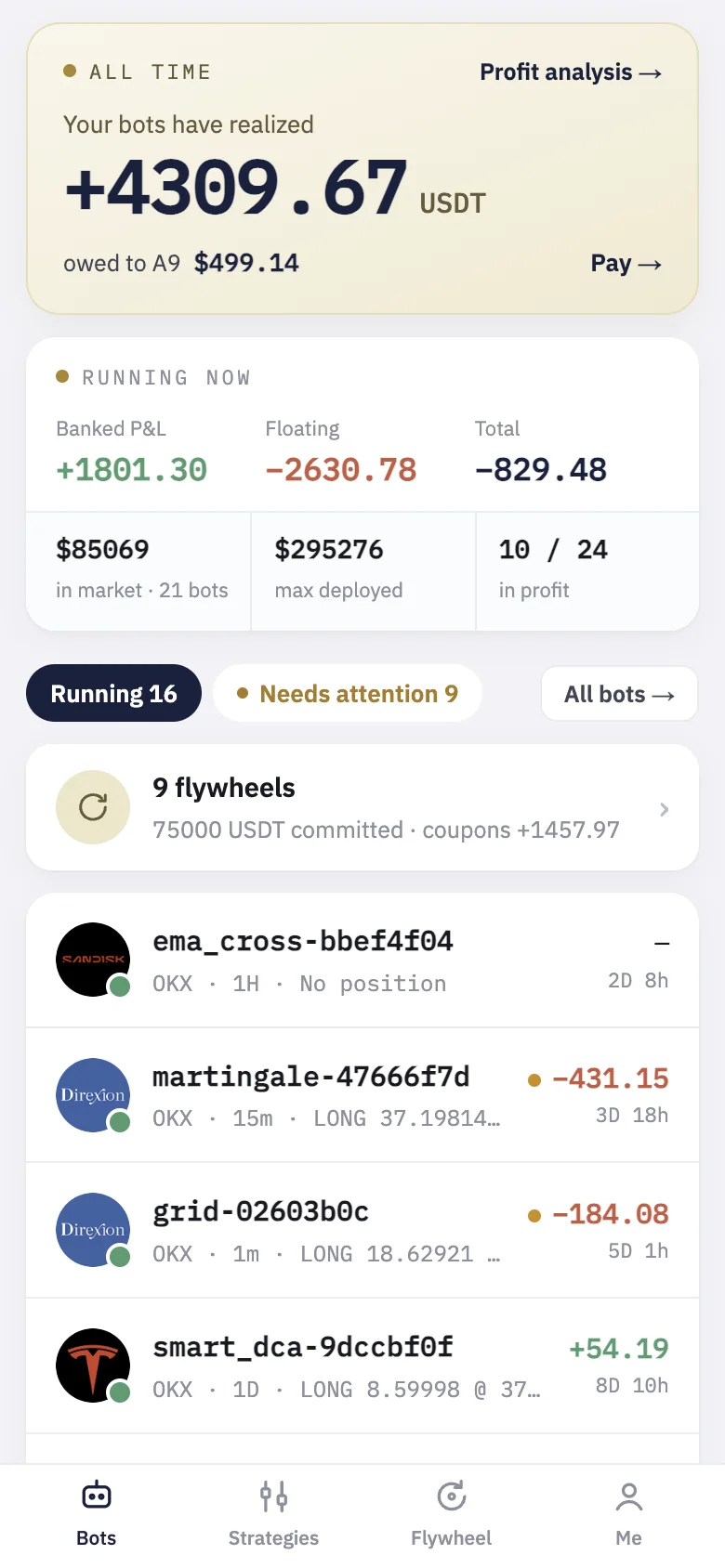
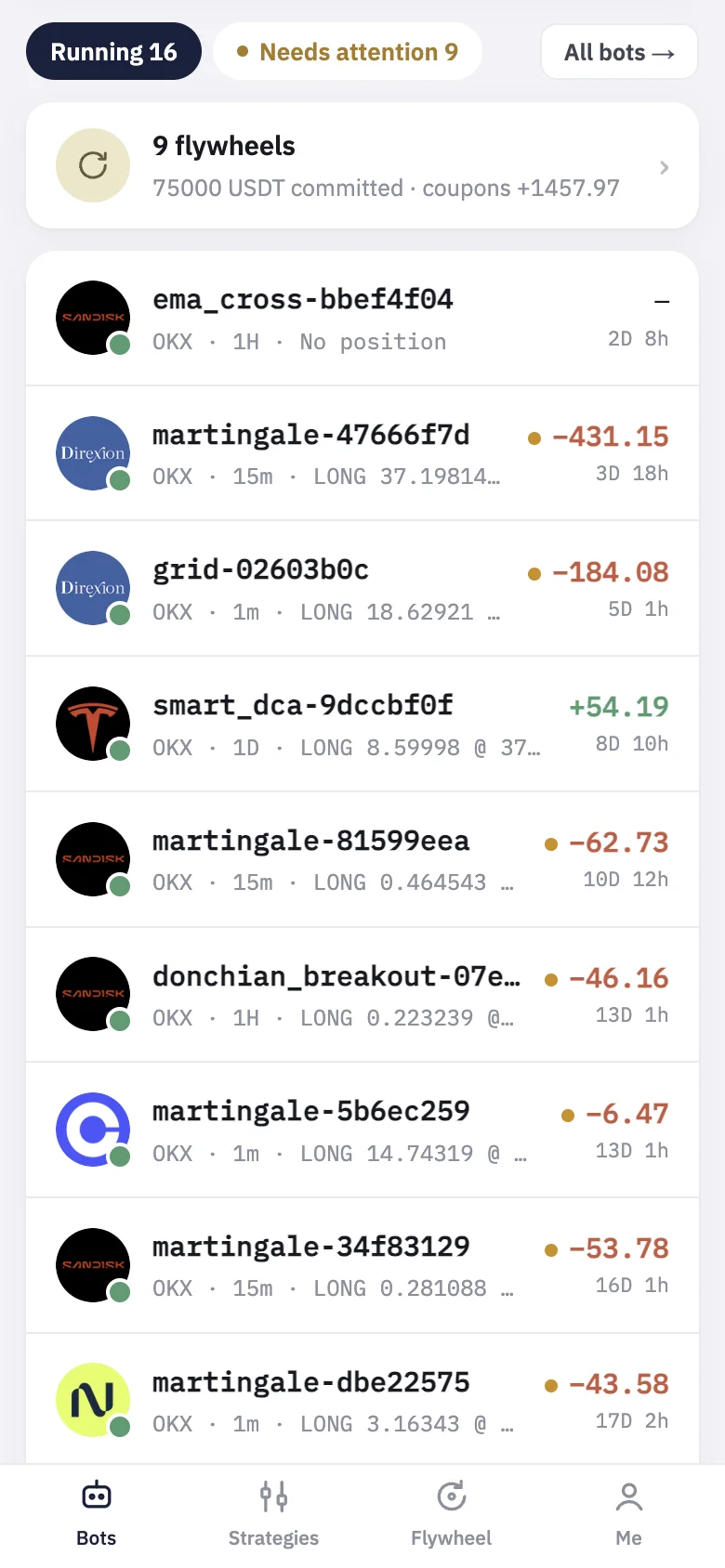
- Two chips filter the list: "Running" (every live bot) and "Needs attention" (bots with a problem or a net loss).
- On a phone each bot is a row with its name, a status dot, exchange, bar and position, then P&L and age; tap it to open the bot. A bot that cannot trade shows the reason and "Fix →". On a computer the same list is a table with Market, Status, Position and P&L (USDT), and a "Details" button.
- Your flywheels, if you run any, appear as one "flywheels" row that opens the Flywheel tab.
- "Find new strategies" opens Discover; "All bots →" lists every bot, running and finished.
Inside a bot
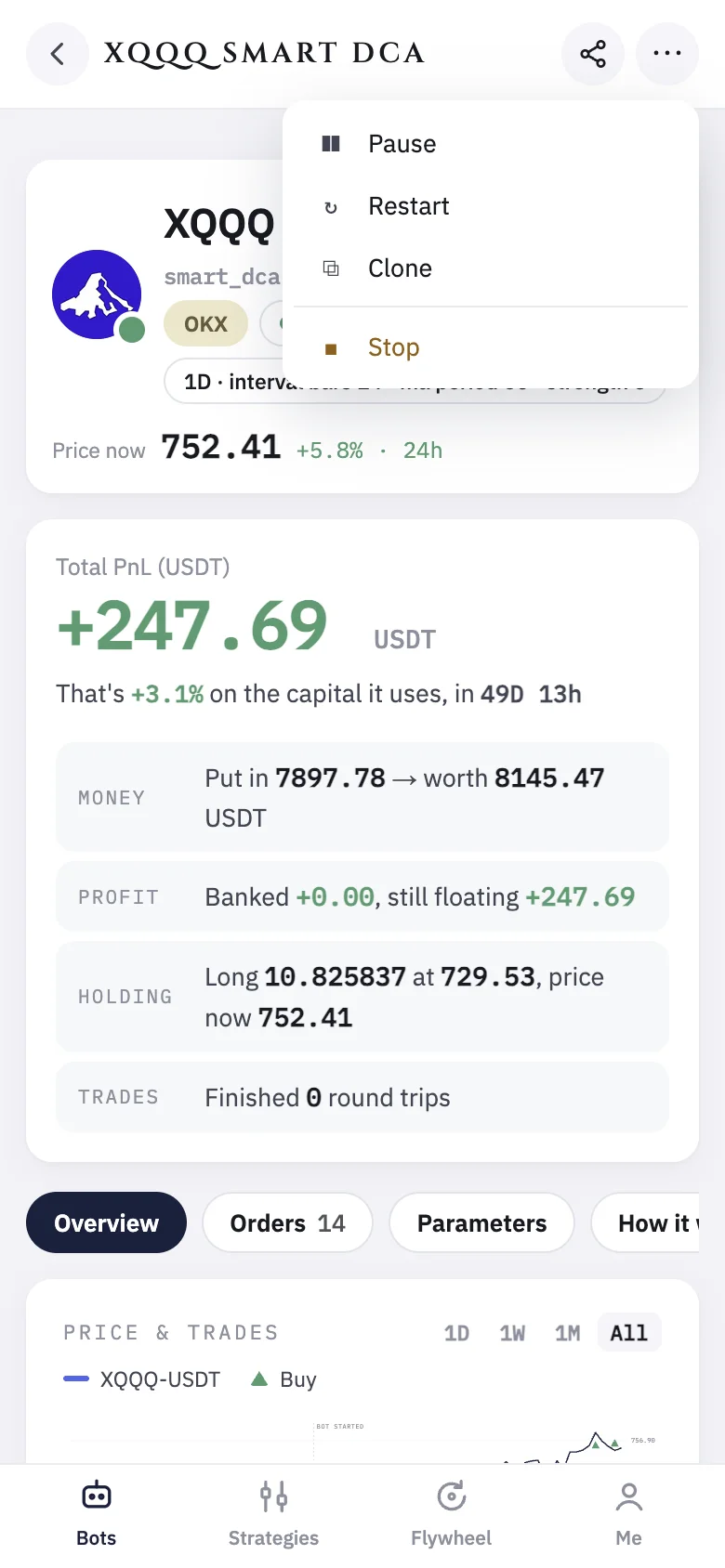
Open a bot for its price chart with every fill marked, Total PnL (USDT), its money and holding, its trades and its own backtest. The tabs are Overview, Orders, Parameters and How it works. The id beside the name (for example martingale-d9057bb6) is what support will ask for.
The ⋯ menu at the top holds:
- Pause: cancels resting orders and places nothing new. The position stays open, unmanaged, until you Resume (the same menu then shows Resume).
- Restart: starts the bot again. It never closes an open position; use it after fixing what a message asked for.
- Clone: opens the strategy page with this bot's symbol, bar and settings, ready to test and run again.
- Stop: asks how. "Stop and close the position" closes it at market (a short is bought back). "Stop without closing" leaves the holding in your account for you to manage. A bot that holds nothing just stops. A paused bot shows "Stop & archive" instead: it is archived at once and its position is kept, not closed.
On the Parameters tab you can change a bot's settings. "Backtest the change first" compares the current and new settings; "Apply to the running bot" restarts it with them and keeps its position.
If the bot's record and the exchange's history disagree, the page says "Record differs from the exchange." and offers "Reconcile with the exchange", which writes back missed fills; it never places an order.
On a computer, a row's "More ▾" on the Bots page also lets you rename a bot.
Restarts and upgrades
Bots survive A9's own restarts and upgrades: positions stay open and each bot picks up where it left off. Pausing, restarting, editing the settings and stopping without closing also keep the position. Only "Stop and close the position", or a Stop item in Bulk actions for a running bot, closes it.
Many bots at once
On All bots, "Bulk actions" offers Pause all shorts, Pause all longs, Pause all, and the same three for Stop. You see how many bots each will reach before you confirm. Long or short is judged by the position held right now, so a bot holding nothing is reached only by "all". Stop closes the positions of running bots; a bot that was already paused is only marked stopped and keeps its position. "Stop all" also stops your TradingView bots. Flywheels are not touched. Nothing restarts on its own afterwards.
The platform fee and your bots
A9 takes a share of each bot's new realized profit, above that bot's previous best, by plan. While the amount owed is under your limit (50 USDT on Free and Core, 100 on Premium, 200 on Generation, plus 1 USDT for each A9 you hold), bots run as normal. Over it, new bots cannot start, and if it stays over, your running bots are stopped without selling anything. Paying on the Payments page lets new bots start again; bots that were stopped for it need a Restart.
If something goes wrong
- Won't start or Crashed: open the bot; the message says what the exchange refused. Fix it (a missing permission, IP address, balance or stock risk notice) and press Restart.
- Paused bots still count toward your plan's bot limit; stop the ones you no longer need.
- A bot shows a loss: it is real. Decide whether to keep it, pause it, or stop and close. A9 does not decide for you.